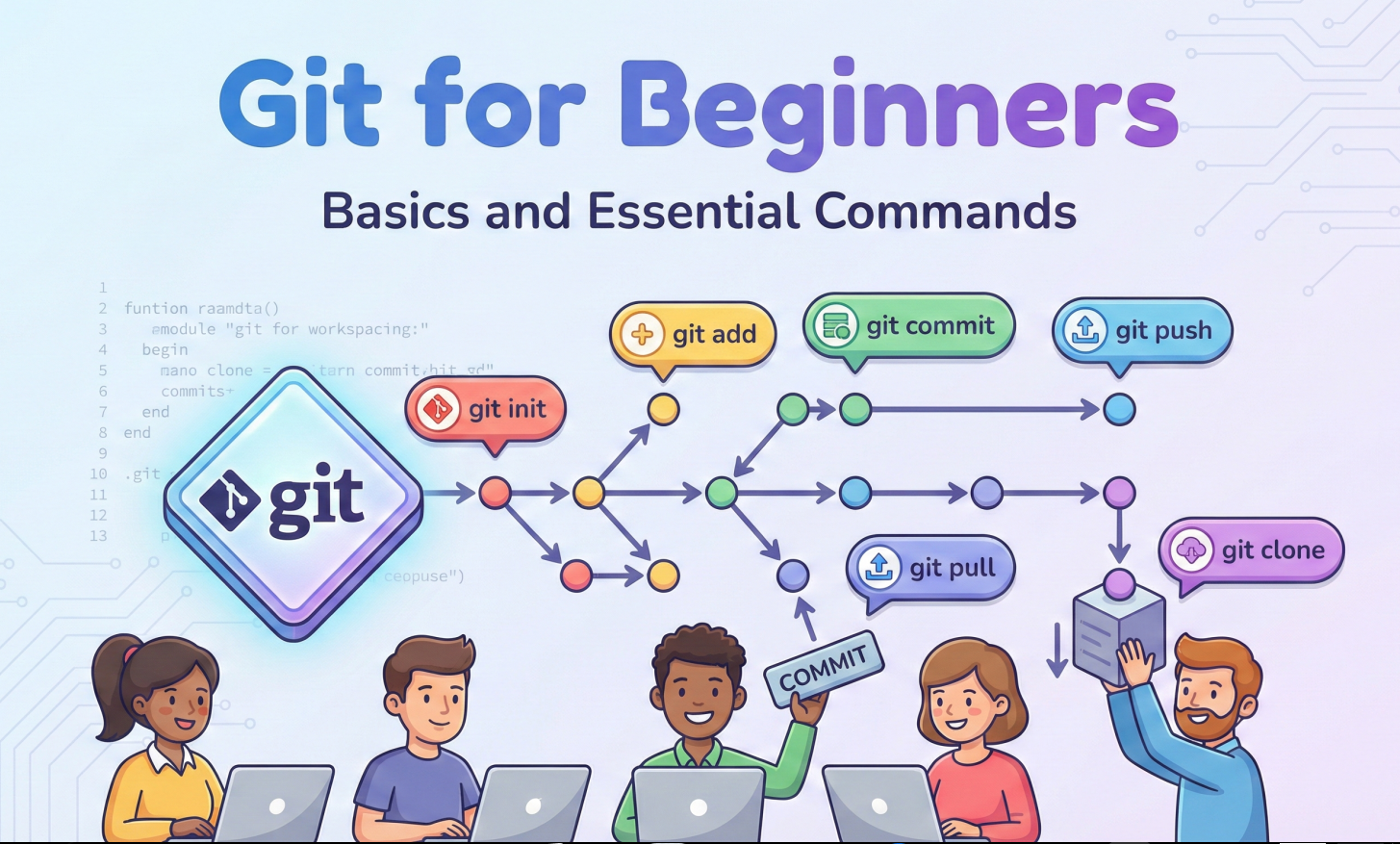
Git for Beginners: Basics and Essential Commands
Self-taught Engineer | Disassembled my first PC at 16, been building ever since | Hardware fundamentals to software and coding| Obsessive learning | Built from scratch to scale
If you're starting your journey in programming or web/app development, you'll hear one word everywhere: GIT. And yes—it is as important as everyone says. Git isn't complicated once someone explains it in simple, human language.
Let's break it down then.
What Is Git?
Git is a time machine for your code. It tracks and remembers every change you make—every file edit, addition, or deletion.
Why does this matter?
If you mess something up → go back to your old work
If you're working with a team → everyone can work on the same project without conflicts
Git is a distributed version control system (DVCS)—meaning every developer gets their own complete copy of the project history. Sounds technical, but the concept is simple.
What does "Version Control" mean?
Imagine saving document copies like Final_v1.js, Final_v2_edit.js, and Final_Final_v3.js.
Version control automates this. It tracks every modification so you can recall specific versions anytime.
What does "Distributed" mean?
If one central server held everything and if it crashed, nobody could work.
Distributed simply means every developer has a full copy of the project and its entire history on their local machine.
Why Git Is Used?
Code projects have multiple files and folders with hundreds to thousands of lines of code. Every time we save our work, Git calls it a commit—a snapshot in time.
A file gets deleted or changes go wrong. Git lets you revert to any previous version instantly.
With multiple team members, Git uses branches to keep work separate until it's ready to merge.
Apart from personal and professional usage, Git is mandatory for Open-source contributions.
Git vs GitHub: What's the Difference?
NO — Git and GitHub are NOT the same.
Git = Tool on your computer that tracks code changes
GitHub = Website where you backup and share those changes
Think of Git as your phone's camera and GitHub as Instagram:
Camera (Git): Takes photos, stores them locally on your phone
Instagram (GitHub): Website where you upload photos to share with the world
You need BOTH:
Git to track your code locally
GitHub to backup and share with others
GitHub has alternatives like GitLab and Bitbucket. They all work with Git—just like you can post photos on Instagram, Facebook, or X/Twitter. Different platforms, same photos.
Git Basics and Core Terminologies
Repository (Repo) -
A repository is just your project folder where Git tracks changes.
If a normal project folder is like a notebook,
a Git repository is the same notebook with the ability to track every change ever made.Commit -
A commit is like hitting Save — but much smarter.
Commit stores some infornation :
what changed
when it changed
who changed it
a message describing about change
Branch -
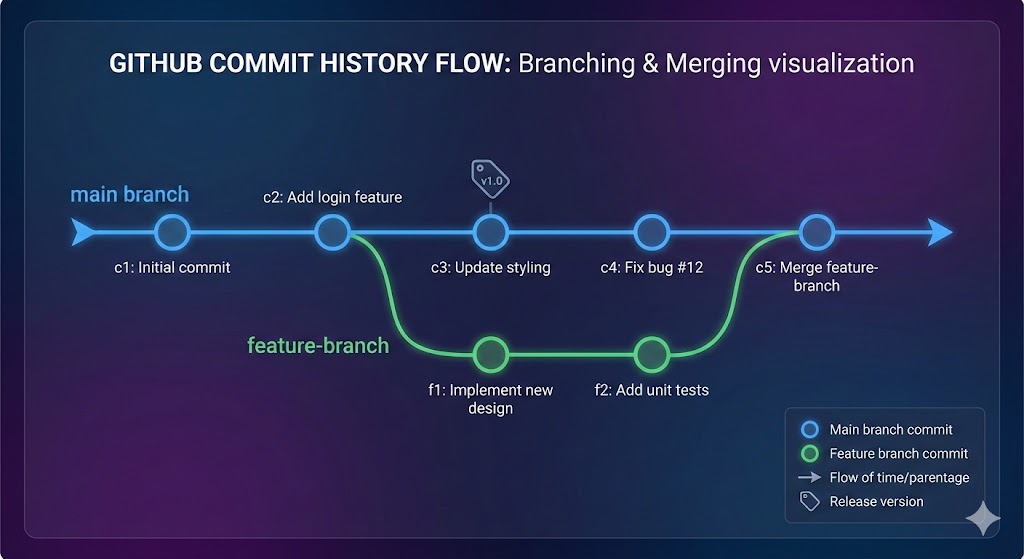
A branch is like creating a copy of your project where you can experiment safely.
You have a main branch and u create a new branch:
main branch = stable version & everything working
Your branch = playground for new features to develop
If your experiment works → merge it.
If it fails → delete it, no harm done to your stable working version.
HEAD -
HEAD simply means { where u currently are } in your project’s history.
If we assume GIT was a game, HEAD would indicate my players current position in the game.
Common GIT Commands
Git has a lot of commands for differrent operations, but on daily basis there are a few that are regularly used.
1.
git init— Start Using Git in a Foldergit initThis turns your normal folder into a Git repository. This has to be done and checked
2.
git status— See What’s Happeninggit statusThis shows:
which files changed
which files are ready to be committed
which files are untracked
Always use this command constantly in order to avoid any mistakes..
3.
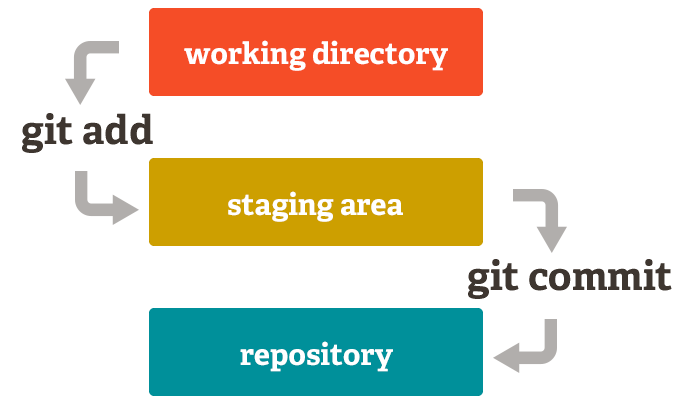
git add— Select Files to SaveTo track a file:
git add file-nameTo track all changes:
git add .4.
git commit— Save Your Workgit commit -m "Added feature"The message describes what you changed.
5.
git log— See Your Full Historygit logShows:
list of commits
authors
timestamps
commit IDs
6. git branch — Create and View Branches
To see branches:
git branch
To create a new branch:
git branch feature-login
7. git checkout — Switch Branches
git checkout feature-login
or use the newer command:
git switch feature-login
8. git merge — Combine Work From Another Branch
Example: merge your feature into main:
    git checkout main
    git merge feature-login
9. git revert — SAFELY undo a commit
Unlike reset, revert does not delete history.
It creates a new commit that cancels the old one.
git revert <commit-id>
Best for public/shared repositories
10. git reset — Move backwards in history
This moves your HEAD and optionally changes your working files.
(NOTE : git reset is dangerous as any thing can go wrong and will impact the complete repo. So be very careful while using th
Soft reset (keeps your changes)
git reset --soft HEAD~1
Moves one commit back but keeps the changes staged.Mixed reset (default —keeps changes unstaged)
Mixed reset (default — keeps changes unstaged)
git reset HEAD~1
Undo last commit but keep the files.
Hard reset (dangerous — deletes changes)
git reset --hard HEAD~1
Goes back and wipes uncommitted work.
Use carefully.
CheatSheet for more GIT commands
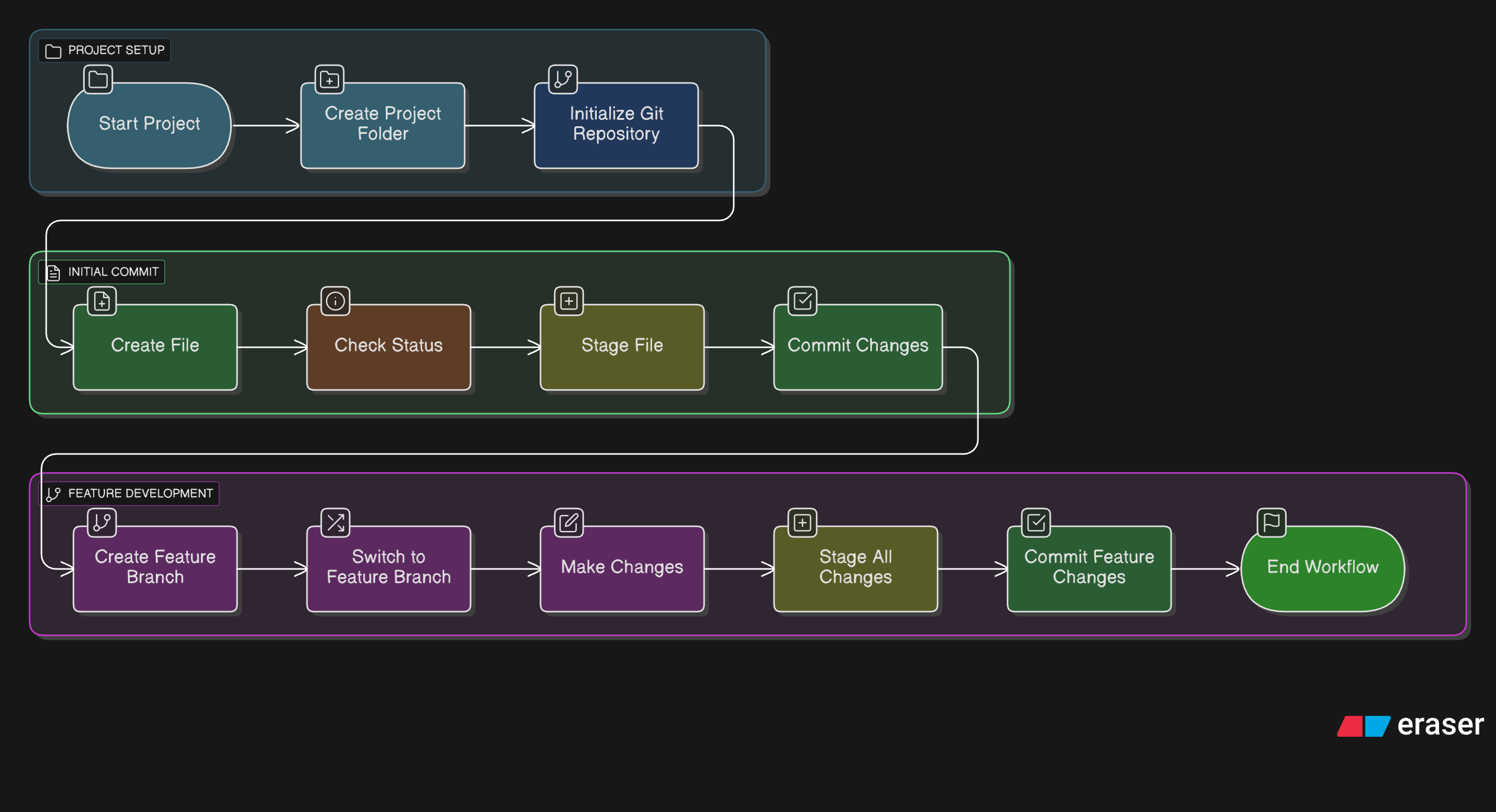
Complete Workflow —>